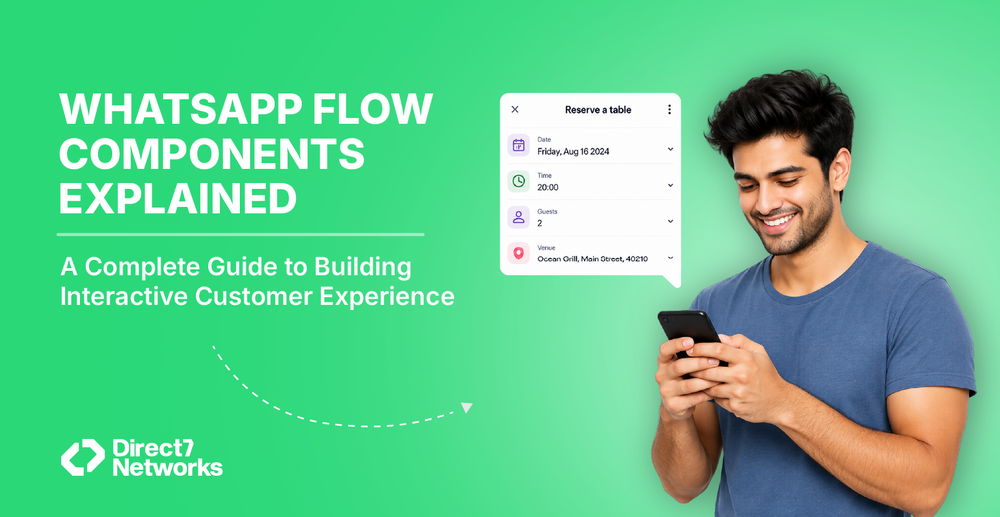

WhatsApp Flow Components Explained: A Complete Guide to Building Interactive Customer Experiences.
Learn every WhatsApp Flow component, how it works, and when to use it to build interactive customer journeys inside WhatsApp.
WhatsApp has evolved far beyond a messaging app. Today, businesses use it to schedule appointments, capture leads, collect feedback, process service requests, and even complete purchases. While traditional chat conversations work well for simple interactions, they often become frustrating when customers need to enter multiple pieces of information. Asking users to reply with their name, email, phone number, preferred date, and additional details across several messages increases the chances of mistakes and abandoned conversations.
That's where WhatsApp Flows make a significant difference.
Instead of exchanging numerous messages, WhatsApp Flows present customers with guided, interactive forms directly inside the WhatsApp interface. Customers can complete tasks without leaving the conversation, creating a smoother experience while helping businesses collect accurate, structured data. WhatsApp Flows support multi-screen experiences with built-in UI components such as text, input fields, media uploads, date selectors, and navigation controls, making them suitable for everything from appointment booking to customer onboarding.
This guide explains every major WhatsApp Flow component, when to use it, and how to design better customer journeys.
What Are WhatsApp Flow Components?
Flow Components are the building blocks of a WhatsApp Flow. Each component serves a specific purpose, such as displaying information, collecting user input, uploading media, or navigating between screens.
When combined, these components allow businesses to create interactive experiences that feel more like a mobile application than a chat conversation.
A typical Flow may include:
- Welcome screen
- Customer information
- Service selection
- Document upload
- Appointment scheduling
- Confirmation screen
Instead of asking customers one question at a time, businesses collect everything in a structured and user-friendly format.
Categories of WhatsApp Flow Components
| Category | Components | Primary Purpose |
|---|---|---|
| Display Components | TextHeading, TextSubheading, TextBody, TextCaption, Image | Present information and guide users |
| User Input Components | TextInput, TextArea, RadioButtonsGroup, CheckboxGroup, Dropdown, ChipSelector, DatePicker, CalendarPicker, OptIn | Collect structured customer information |
| Media Components | PhotoPicker, DocumentPicker | Capture images and documents |
| Navigation Components | Footer | Move users through the Flow and submit information |
Display Components
Display components improve readability and guide users through each step without requiring any input.
TextHeading
Acts as the primary title for each screen.
Example:
Book Your Appointment
A clear heading immediately tells users what they need to accomplish.
TextSubheading
Adds context beneath the heading.
Example:
Choose a convenient date and time
Subheadings help divide complex forms into manageable sections.
TextBody
Displays descriptions or instructions.
Examples include:
- Explain required documents
- Describe available services
- Provide onboarding guidance
TextCaption
Captions are ideal for notes, disclaimers, or additional guidance.
Examples include:
- Your information is encrypted.
- Required fields are marked with *.
Image
Images make Flows more engaging and informative.
Businesses commonly use them for:
- Product previews
- Identity verification examples
- Promotional banners
- Instructional illustrations
User Input Components
User input components collect structured information that can be processed automatically by business systems.
TextInput
Used for collecting single-line information such as:
- Name
- Phone number
- Customer ID
Different input types help validate information before submission, reducing errors.
TextArea
Suitable for longer responses, including:
- Customer feedback
- Delivery instructions
- Support requests
RadioButtonsGroup
Allows users to choose one option from a short list.
Examples:
- Preferred contact method
- Payment option
- Service type
Best used when there are only a few choices.
CheckboxGroup
Lets customers select multiple options.
Examples:
- Services required
- Product interests
- Preferred communication channels
Dropdown
Useful when many options exist.
Examples include:
- Countries
- Cities
- Departments
- Product categories
Dropdowns keep screens compact while accommodating larger datasets.
ChipSelector
Displays options as tappable chips, making selection faster and more visually engaging.
Ideal for:
- Interests
- Skills
- Product preferences
- Appointment categories
DatePicker
Allows users to select a specific date.
Common use cases:
- Appointment booking
- Delivery scheduling
- Event registration
- Reservation systems
CalendarPicker
Offers a richer calendar interface for selecting dates, especially when users need greater visibility across available schedules.
OptIn
Collects user consent before continuing.
Typical examples include:
- Marketing consent
- Privacy policy acceptance
- Terms and conditions
This component supports transparent consent collection within the Flow.
Media Upload Components
Many business processes require customers to submit files during an interaction.
PhotoPicker
Enables customers to upload images directly from their device or camera.
Typical use cases include:
- Identity verification
- Damage claims
- Product photos
- Utility meter readings
DocumentPicker
Allows users to upload supported documents, such as PDFs.
Businesses commonly request:
- Proof of identity
- Insurance documents
- Loan applications
- Registration certificates
- Signed agreements
These components reduce the need for follow-up emails or external upload portals.
Navigation Component
Footer
The Footer contains the primary action button on each screen.
Examples include:
- Continue
- Next
- Submit
- Confirm
- Finish
The Footer guides users through multi-step journeys and ultimately submits the collected information. It also controls navigation between screens and can trigger completion actions.
How Components Work Together
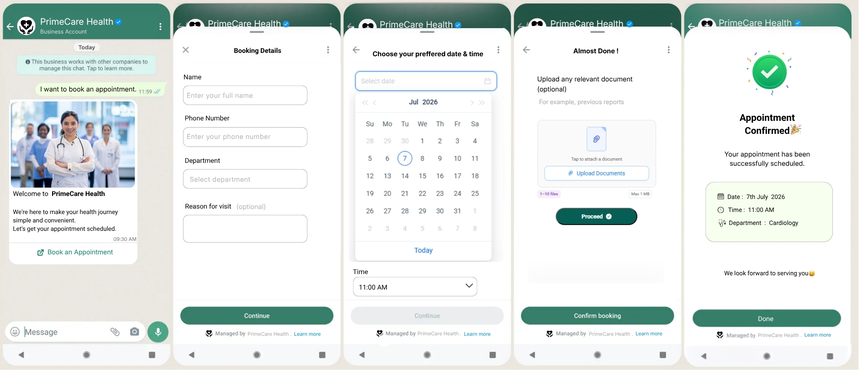
Imagine a healthcare provider allowing patients to schedule appointments.
The Flow might look like this:
Screen 1
- TextHeading
- TextBody
- Footer
↓
Screen 2
- TextInput
- TextInput
- Dropdown
- Footer
↓
Screen 3
- DatePicker
- CalendarPicker
- Footer
↓
Screen 4
- PhotoPicker
- OptIn
- Footer
↓
Confirmation Screen
- TextHeading
- TextBody
- Footer
Rather than exchanging ten or more chat messages, the patient completes the entire booking process within a guided interface.
Best Practices for Designing WhatsApp Flows
Well-designed Flows prioritize simplicity and mobile usability. Consider these practices:
- Limit each screen to one clear objective.
- Keep forms concise to reduce abandonment.
- Use descriptive labels and helper text.
- Choose the component that best matches the data being collected.
- Group related fields together.
- Validate required inputs whenever possible.
- Use images only when they add value.
- Test the Flow on different mobile devices before publishing.
Common Design Mistakes
Many Flows become difficult to complete because of avoidable design issues.
Common mistakes include:
- Asking for too much information on a single screen.
- Using Dropdowns for only two or three options instead of radio buttons.
- Writing vague field labels.
- Adding unnecessary mandatory fields.
- Providing little guidance when validation fails.
- Creating long scrolling screens instead of multiple focused steps.
Thoughtful component selection often has a greater impact on completion rates than adding more functionality.
Real-World Business Applications
WhatsApp Flows are being adopted across a wide range of industries for structured data collection and process automation.
| Industry | Example Use Case |
|---|---|
| Healthcare | Appointment booking and patient registration |
| Banking | Loan applications and KYC information |
| Insurance | Claims submission with document uploads |
| Retail | Product recommendations and order requests |
| Education | Student admissions and event registrations |
| Travel | Holiday enquiries and booking requests |
| Logistics | Delivery rescheduling and address updates |
| Government | Citizen service applications and registrations |
These experiences reduce manual effort while improving the customer journey by keeping interactions inside WhatsApp.
Choosing the Right Component
Selecting the correct component improves both usability and data quality.
| Requirement | Recommended Component |
|---|---|
| Single-line information | TextInput |
| Long responses | TextArea |
| One option from a few choices | RadioButtonsGroup |
| Multiple selections | CheckboxGroup |
| Large option list | Dropdown |
| Quick visual selection | ChipSelector |
| Appointment date | DatePicker |
| Calendar-based scheduling | CalendarPicker |
| Upload image | PhotoPicker |
| Upload PDF | DocumentPicker |
| Collect consent | OptIn |
| Navigate screens | Footer |
Final Thoughts
WhatsApp Flows transform traditional conversations into guided, interactive experiences that are easier for customers to complete and easier for businesses to process. By combining display, input, media, and navigation components effectively, organizations can build intuitive journeys for lead generation, customer onboarding, appointment scheduling, feedback collection, and countless other use cases.
The key is not simply using every available component, but selecting the right one for each step in the customer journey. Well-designed Flows reduce friction, improve completion rates, and provide businesses with cleaner, more reliable data.
As you begin designing WhatsApp Flows, take time to understand each component individually. In our upcoming articles, we'll explore every component, from TextInput and Dropdown to PhotoPicker and Footer, with practical examples, implementation tips, and real-world use cases to help you build better customer experiences.